Creating a Dunning Action
Creating a Dunning Action
A Dunning Action is a single record of one reminder step against one overdue invoice — for example, "send the 7-day email reminder for invoice ACC-SINV-2026-00042." Each action records what was attempted, when, and the outcome (Sent, Skipped, Failed, or Cancelled).
The normal way: automatic
You usually don't create Dunning Actions by hand. The system does it for you. Every day, a scheduled job looks at overdue invoices, checks them against the dunning ladder (7-day email, 15-day SMS, 30-day phone, 60-day legal), and automatically creates the Dunning Actions that are now due. A second daily job then processes them — sending each one, or skipping it if the invoice is disputed or covered by a promise to pay, and recording the result.
So in day-to-day use, Dunning Actions simply appear as invoices become overdue. You review them, not create them.
Creating one manually
Occasionally you may want to create a one-off action by hand — for example, to schedule a specific follow-up outside the normal ladder. Here's how:
- Go to Dunning Action and click New.
- Select the Customer (the Credit Customer) and the Invoice you're following up on.
- Set the Scheduled Date — the date this action should run.
- Choose the Channel (Email, SMS, WhatsApp, Phone Call, or Legal Escalation) and, if relevant, the Step # and Collection Workflow.
- Set the Status to Scheduled — this is important. The system's daily executor only picks up actions that are set to Scheduled.
- Save.
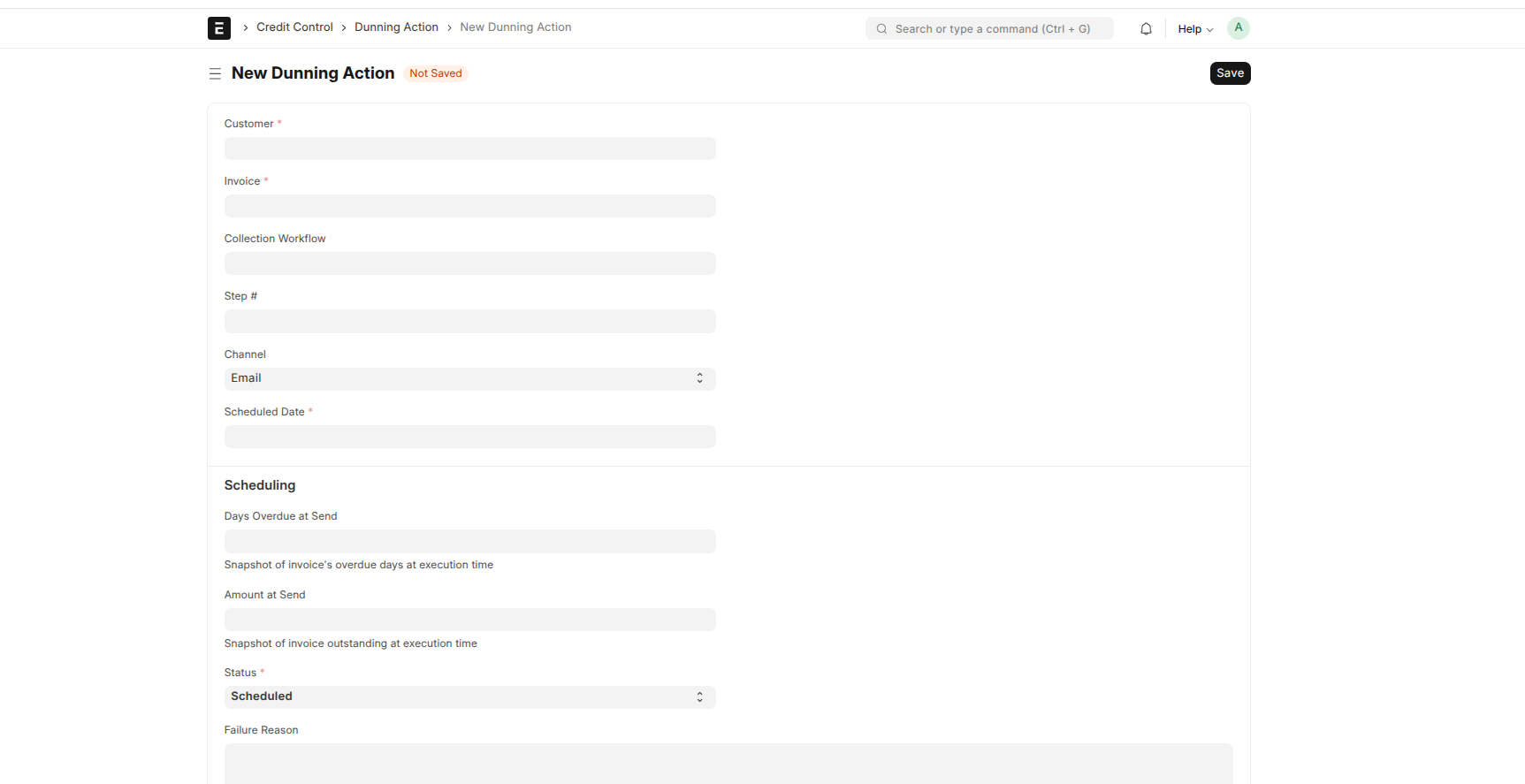
Once saved with status Scheduled, the action is treated exactly like an automatically-created one: when its scheduled date arrives, the daily executor processes it — applying the same rules (it will skip if the invoice is disputed or has an active promise to pay) and recording the outcome.
Running an action immediately
If you have a Scheduled action and don't want to wait for the daily job, you can run it now using the Run Now option on the action. This sends it immediately (bypassing the usual business-hours timing), while still respecting the dispute and promise-to-pay rules.
Reading the outcome
After an action runs, its Status tells you what happened:
- Sent — the reminder went out
- Skipped — not sent; the Skip Reason says why (Dispute, Promise to Pay, Paid, Invoice Cancelled, or Other)
- Failed — an error occurred; the Failure Reason has details
- Cancelled — the action was called off