Stock Reconciliation
Stock Reconciliation is the process of counting and evaluating material/products, periodically at the year-end.
This is done in order to:
- Keep the actual physical stock count and book stock count in sync
- Value the stock for the preparation of the accounting statements
The Stock Reconciliation feature is used for:
- Posting opening stock
- Reconciling the book and the actual stock
To access the Stock Reconciliation list, go to: > Home > Stock > Tools > Stock Reconciliation
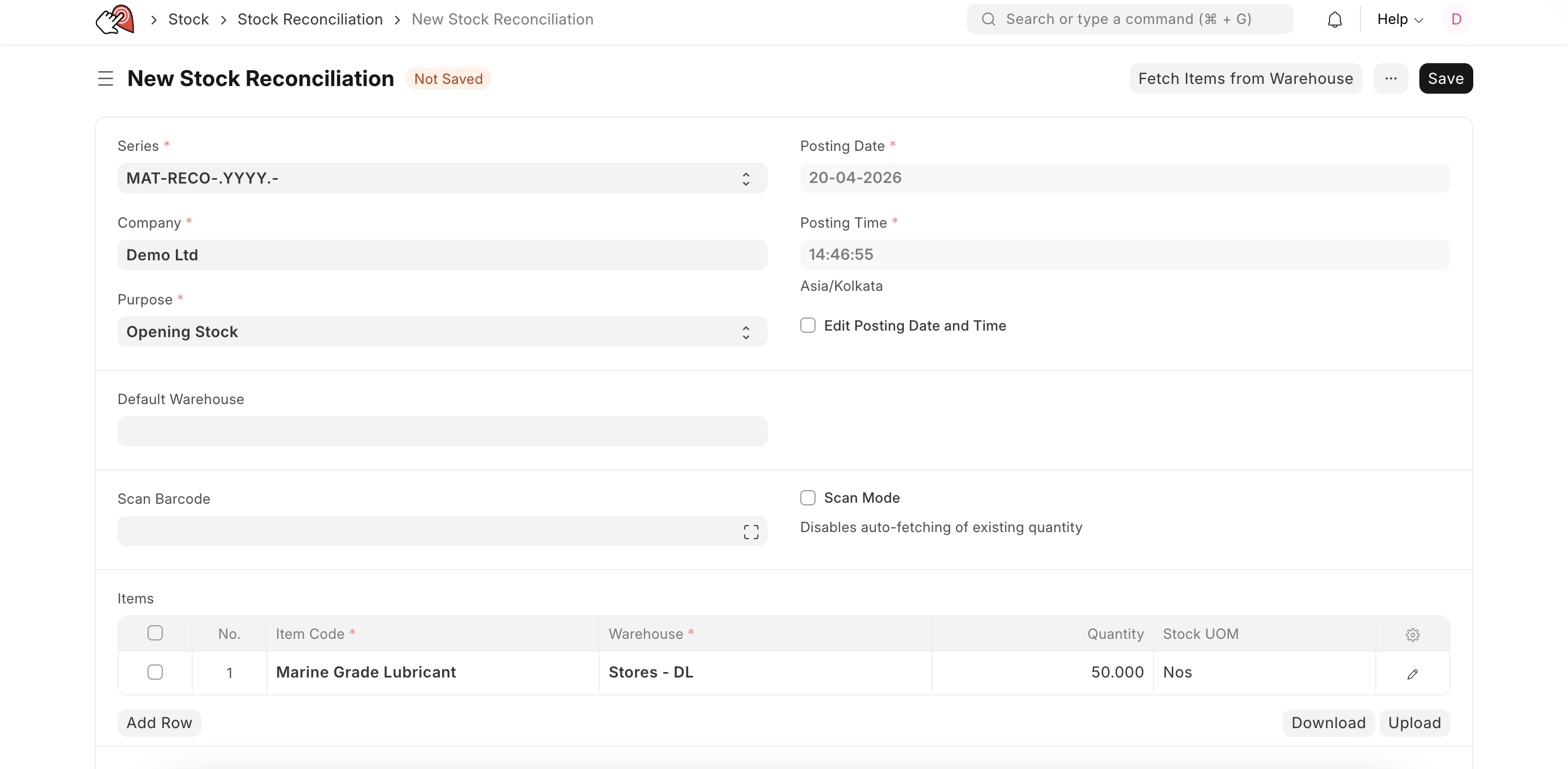
Opening Stock
Using stock reconciliation, you can update the number of specific items in a warehouse as of a specific time. You can also add Items in the stock that have Serial Numbers or batch numbers.
- Go to the Stock Reconciliation list, click on New.
- Select the Purpose as 'Opening Stock'. You can edit the posting Date and Time.
- Select Item Code, Warehouse, Quantity, and Valuation Rate. If there is a Serial / Batch No involved, add it.
- If you want to auto-generate Serial No / Batch No. then keep those fields blank. For auto-generation of Serial No, you need to set "Serial Number Series" in the Item master. To auto-generate the batch number, enable the "Automatically Create New Batch" checkbox in the item master.
- The Difference Account will be set as 'Temporary Opening'.
- Save and Submit.
Stock Reconciliation
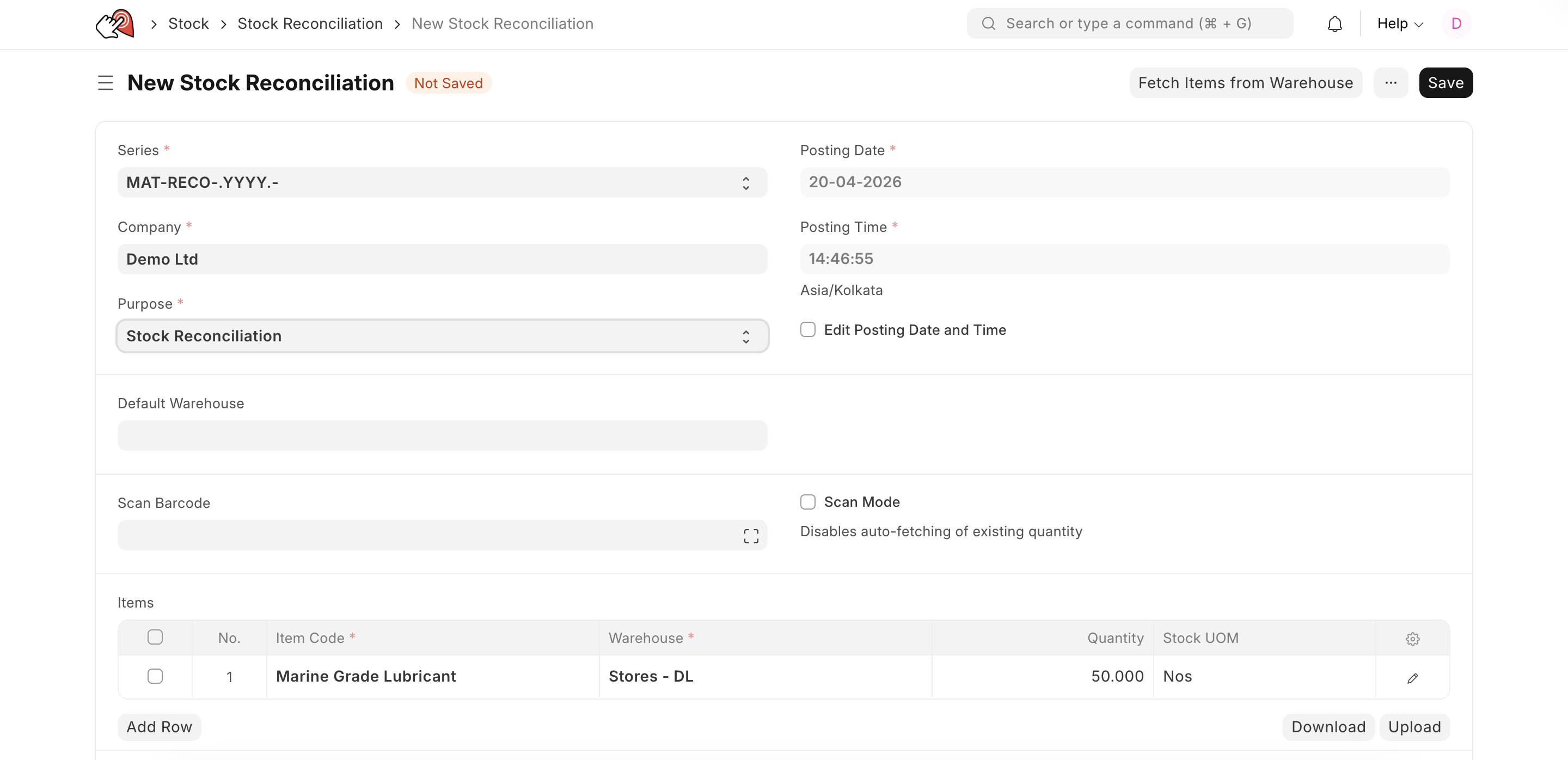
Stock Reconciliation is the process of counting and evaluating stock-in-trade, periodically and at year-end, in order to value the total stock for preparing accounting statements. In this process, the actual physical stocks are checked and recorded in the system. The actual stocks and the stock in the system should be in agreement and accurate. If they are not, you can use the Stock Reconciliation tool to reconcile the stock balance and value with actuals.
To reconcile the stock:
- Go to the Stock Reconciliation list, click on New
- Select the Purpose as 'Stock Reconciliation'. You can edit the posting Date and Time.
- Set Item Code, Warehouse.
- The current Quantity and Valuation Rate will be fetched, and the quantity will be changed as required.
- The expense account in the Difference Account will be set to 'Stock Adjustment' by default.
- The Cost Centre default will be 'Main', change if needed.
- Save and Submit.