A Timesheet is the record of the number of hours spent by an employee on completion of each task.
The Timesheet can also be used to calculate the billable towards an employee, to calculate their salaries, or to track an employee's contribution towards a Project or a Task.
In ERPNext, a Timesheet can have an account of a particular employee working on multiple Tasks or Projects in a tabular format.
To access Timesheet, go to,
Home > Projects > Time Tracking > Timesheet
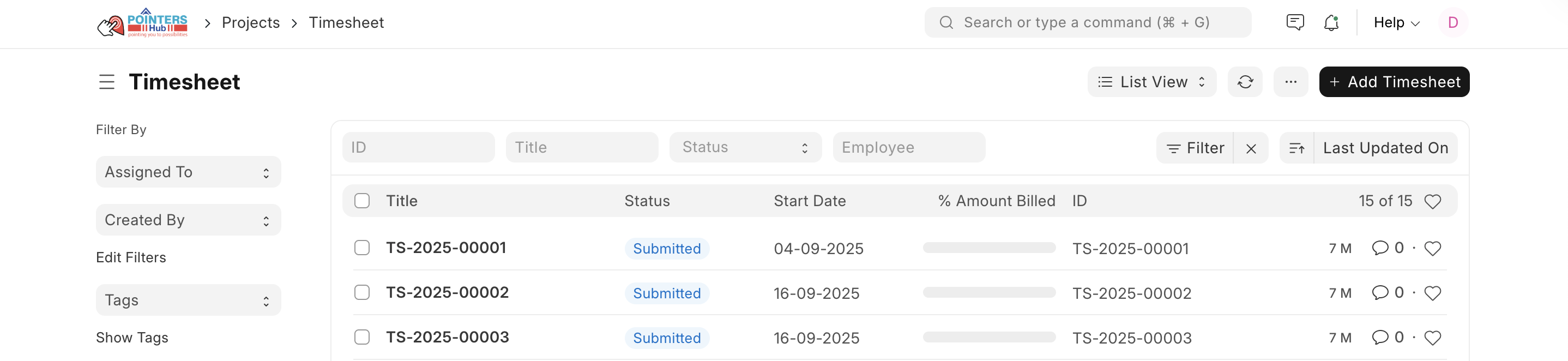
How to create a Timesheet
- Go to Timesheet list and Click on New.
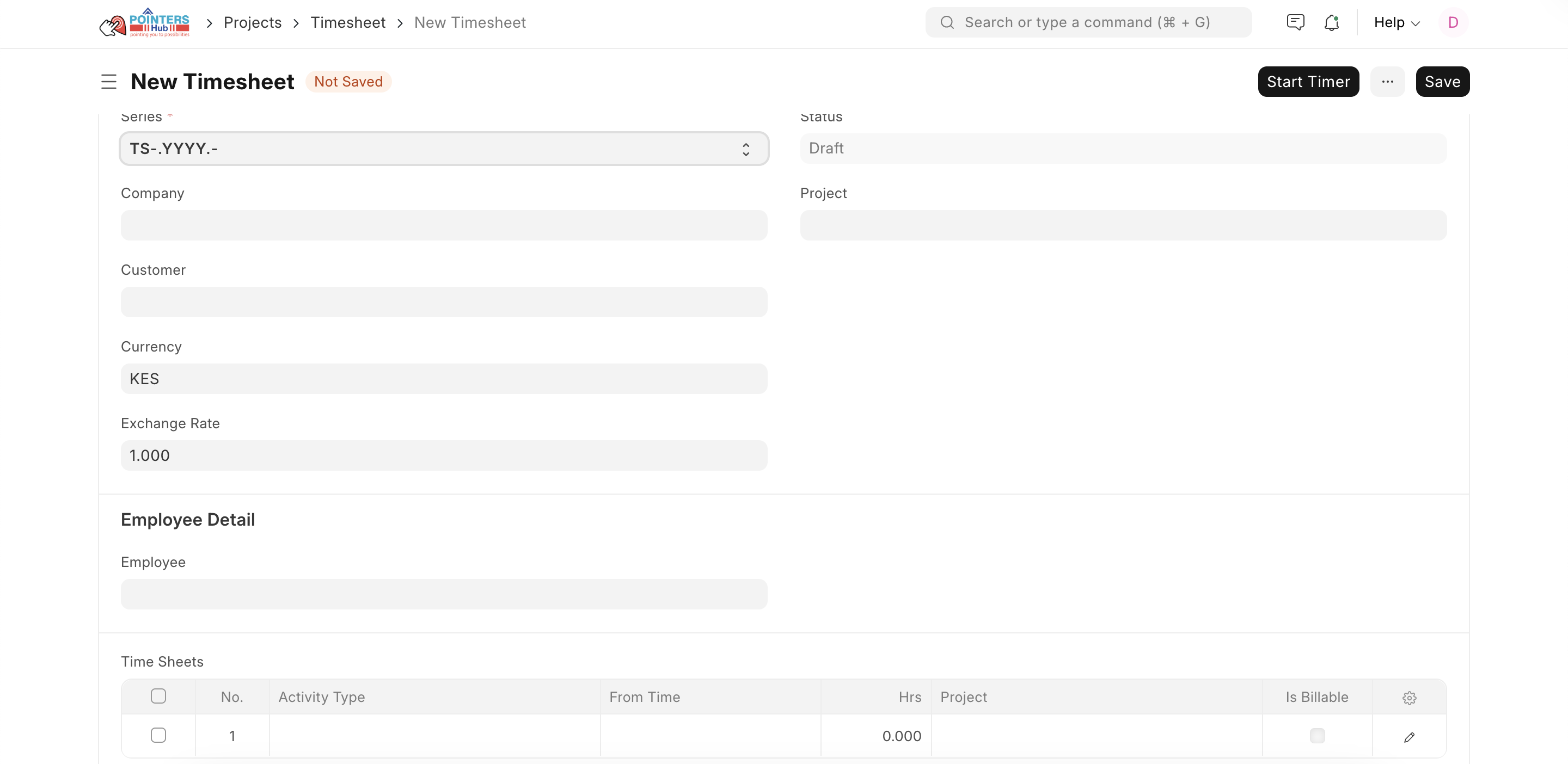
- Enter the Company name and the Employee Code.
- Add the following details to the field 'Time Sheets'.
- Activity Type: Add the type of activity for which the Time Sheet has been created.
- From Time: Enter the date and time at which the work was started.
- Hrs: Enter the number of hours for which this Time Sheet has been created. One Timesheet can be used to track the work hours on multiple days as well.
- Project: If this Time Sheet needs to be tagged to a particular Project, you can add the name of the Project here.
- Bill: This box needs to be checked if this particular Time Sheet is a billable.
- Click on 'Add Row' to add more such Time Sheets.
- Save.
- After saving the Timesheet, according to the details entered in the different Time Sheets, the Start Date, End Date and the Total Working Hours will get updated automatically. Click Submit.
Last updated 4 months ago
Was this helpful?